AppLocker WorkAround
Who this guide is for
This guide is for people who should have the privilege to make changes on your organization's computers: the managers and decision makers in your organization. It isn't meant to be handed out freely.
AppLocker blocks programs from running out of Downloads on purpose. That moment of friction is the point: stop and think before you run something, and slow down before committing to anything that could damage the business. This workaround keeps a little of that friction while still letting you install what you need.
If you're a manager or decision maker, you're welcome to share it internally with key users or your whole team. The extra steps still slow people down slightly, and that's all we want.
For DTC staff: this isn't the first answer to give a frustrated end user. Use it when a group of people at one client keeps running into the block, and share it with that client's manager or decision maker, not only with the person who called.
Open the Installer Location
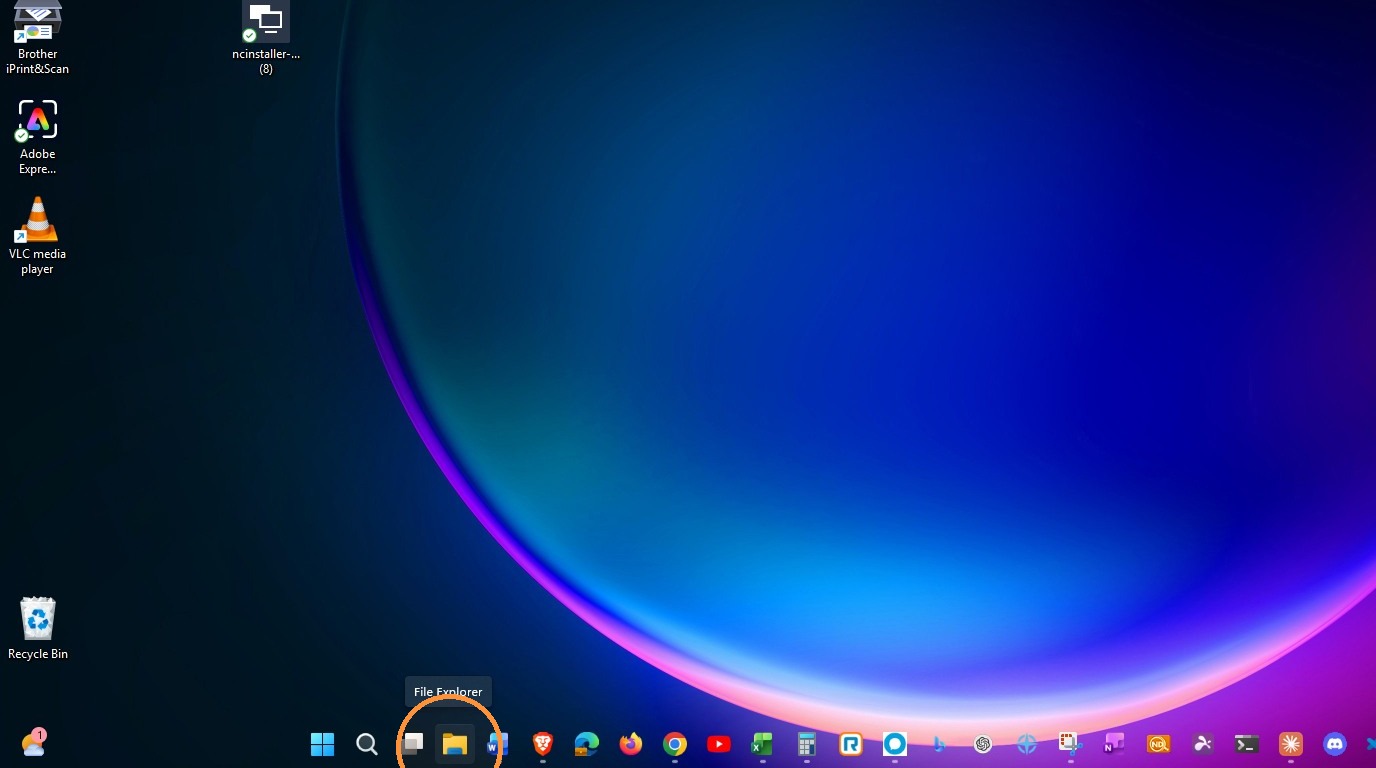
1. Once download is complete, Open File Explorer from the taskbar.
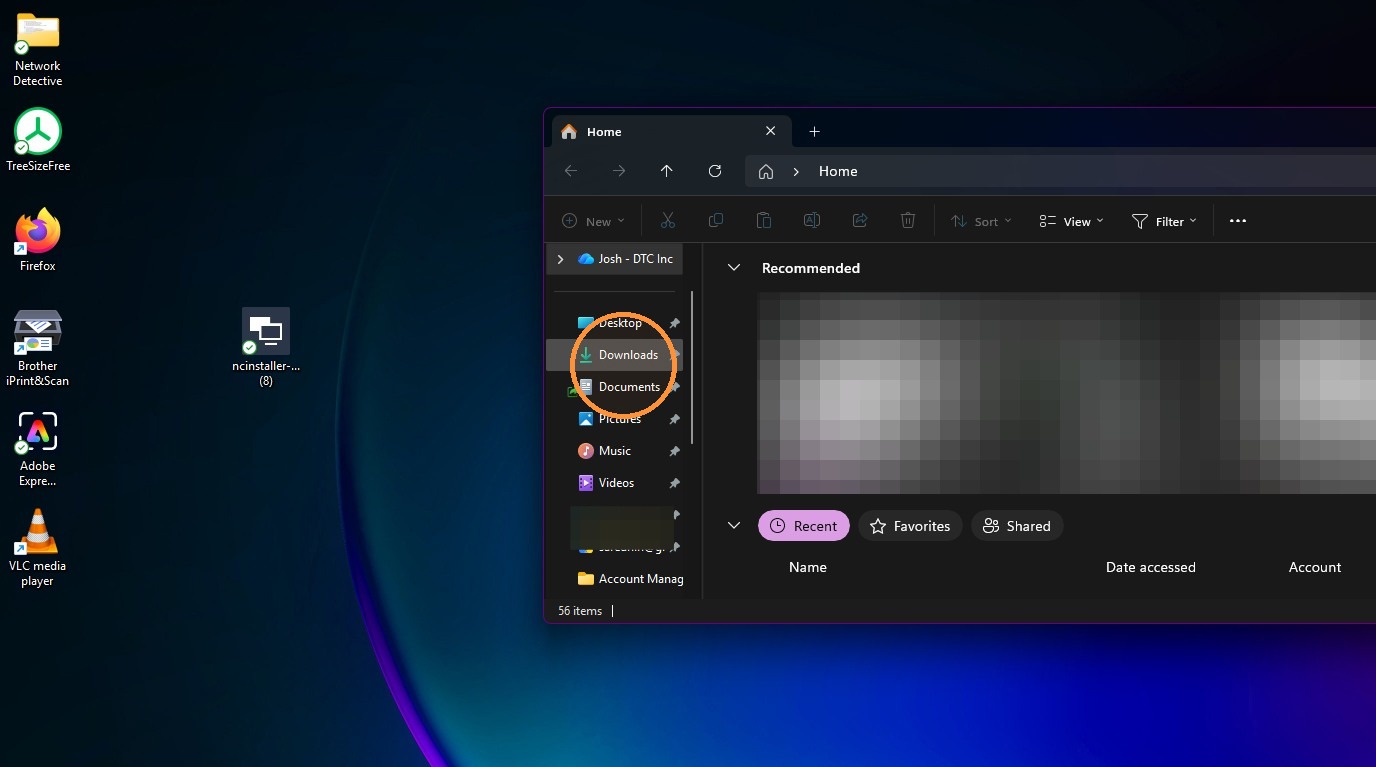
2. Click "Downloads"
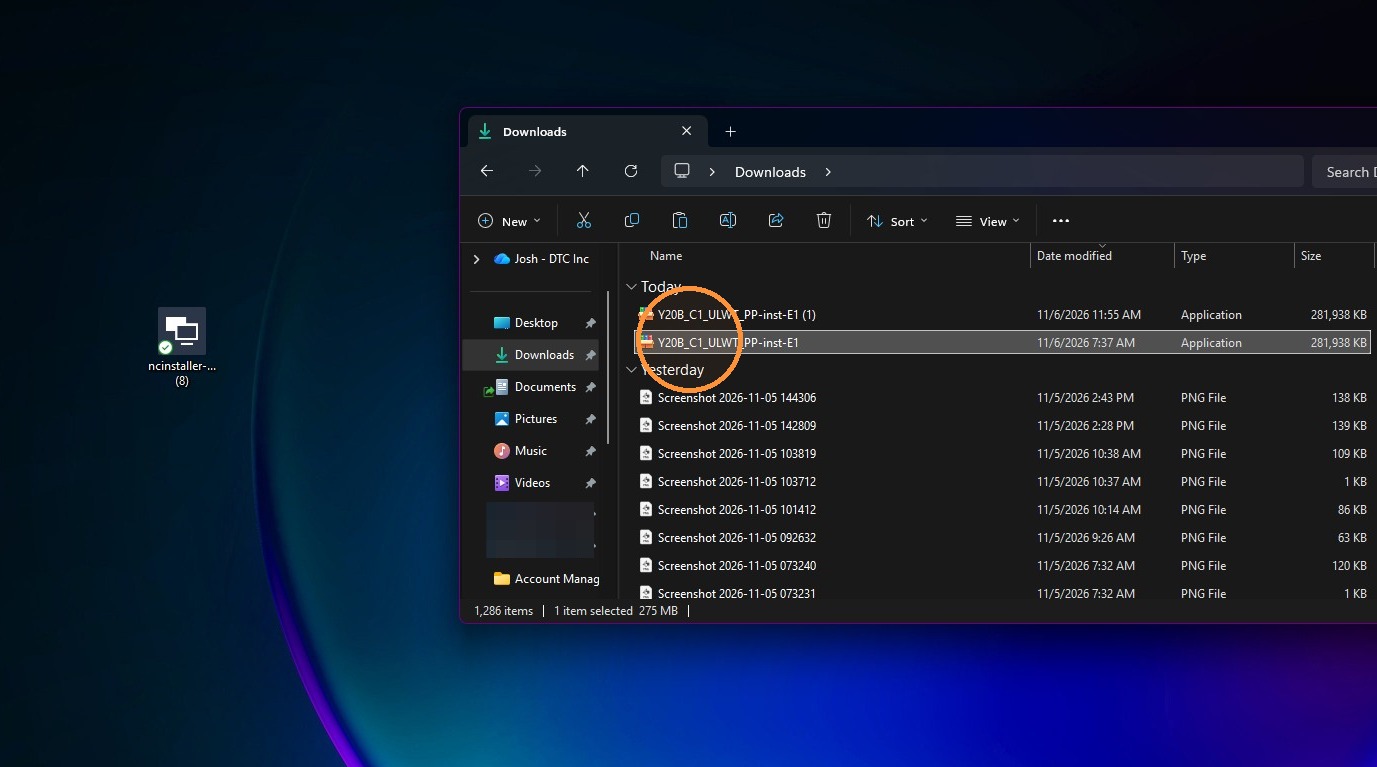
3. Double-click the installer in Downloads.
4. Close the administrator-blocked app dialog.
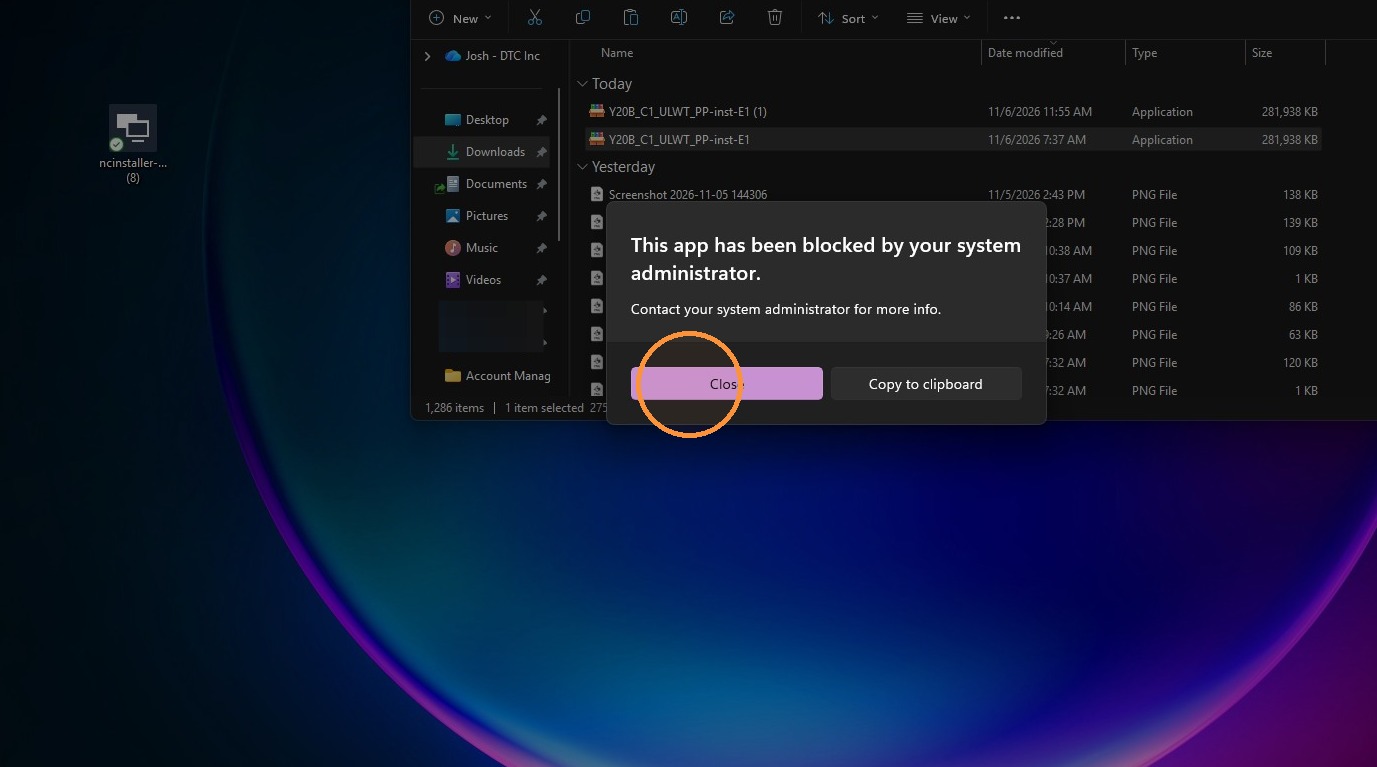
Browse Local Disk
5. Scroll down and Select "This PC" in the navigation pane.
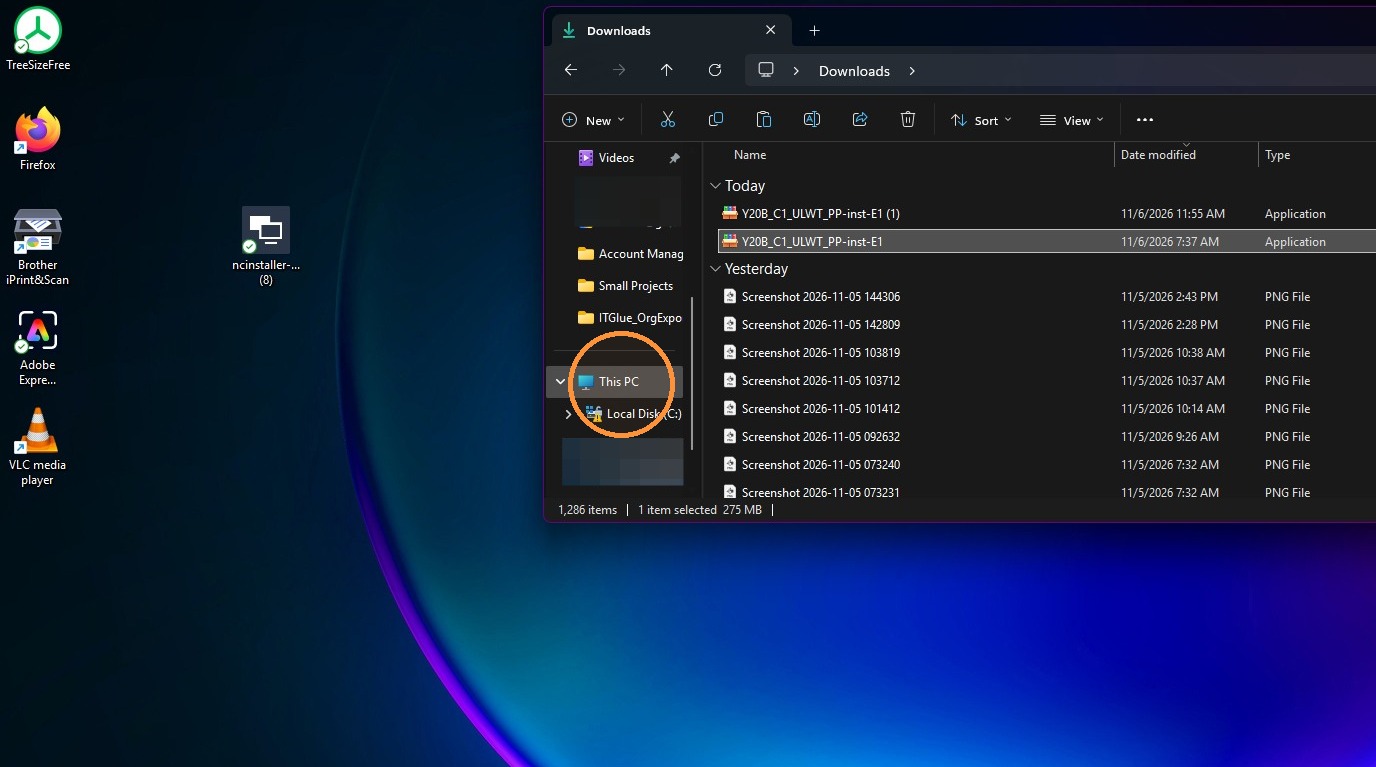
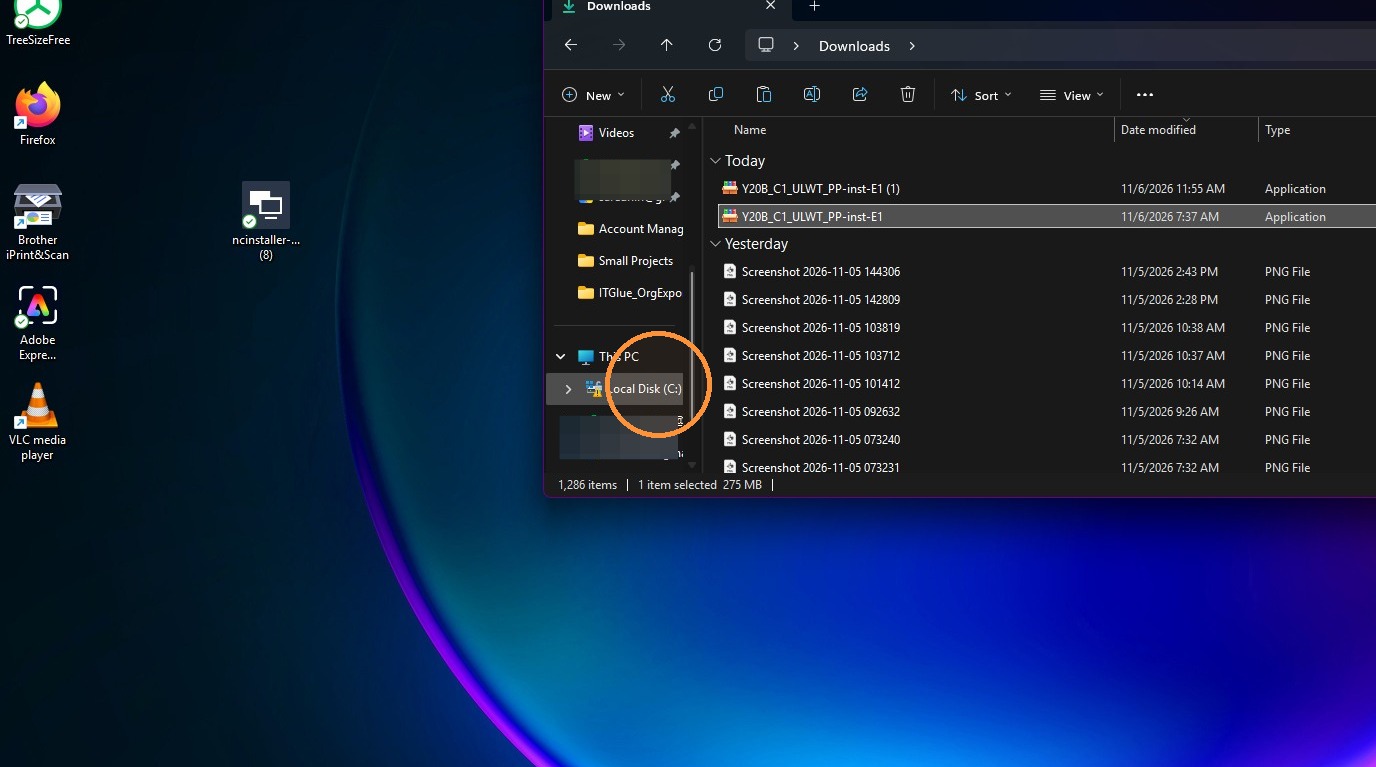
6. Open Local Disk (C:) from This PC.
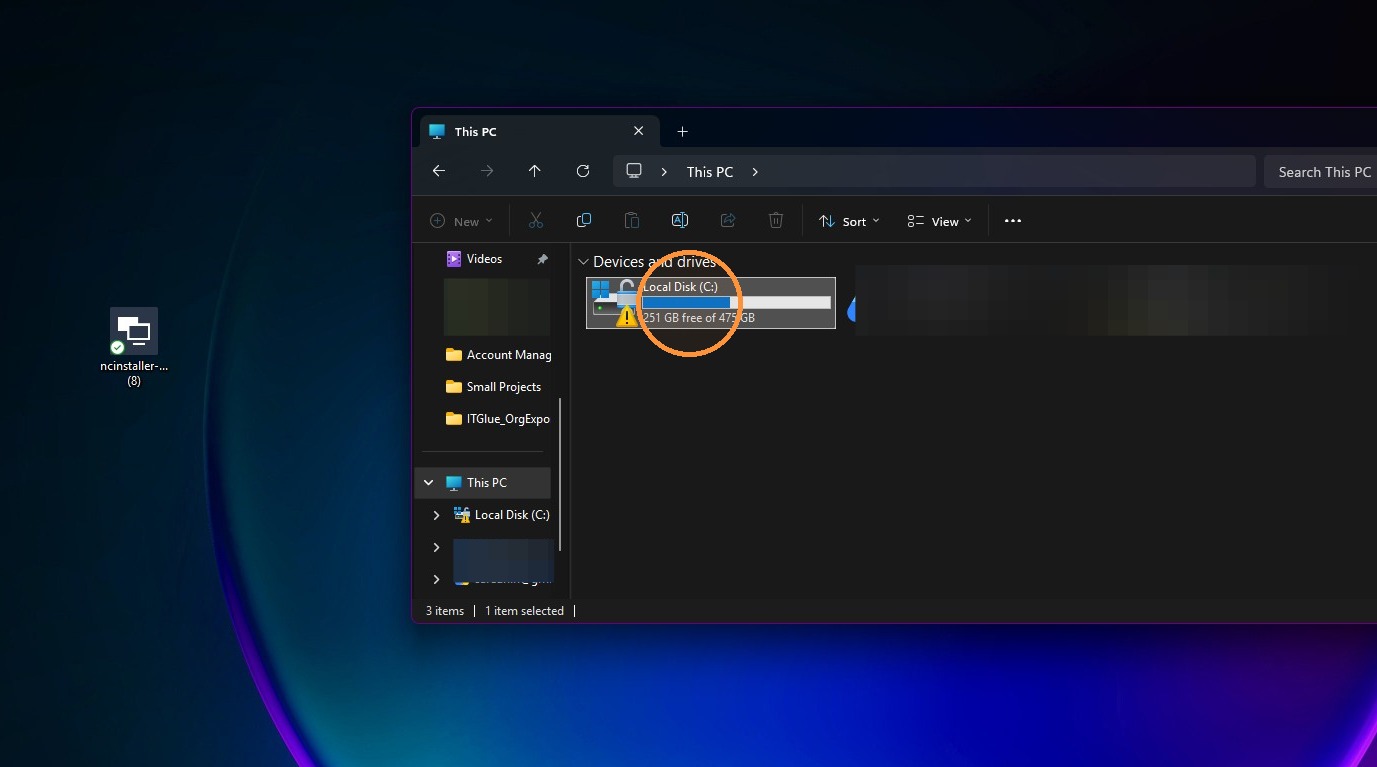
7. Create a new Folder in the root of the C: drive by clicking on the word "New"
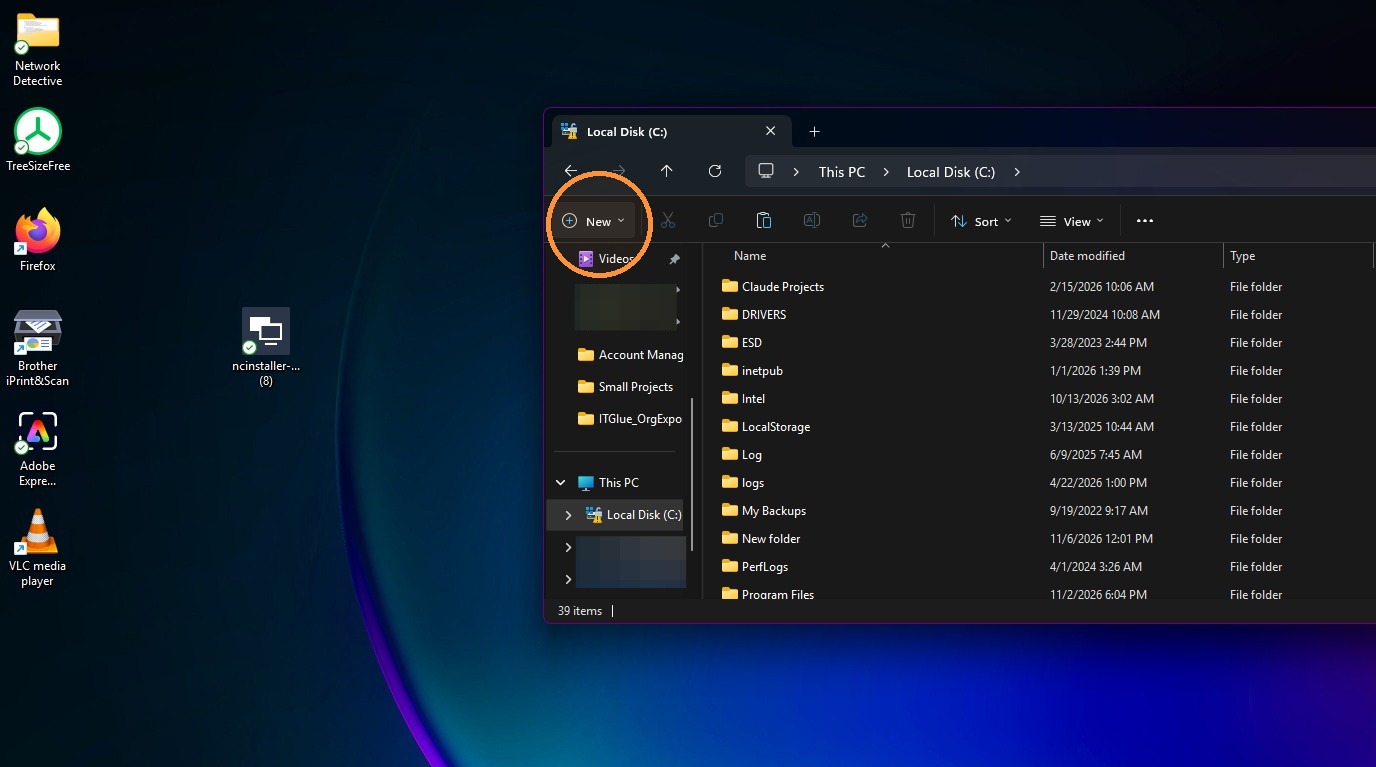
8. Select Folder
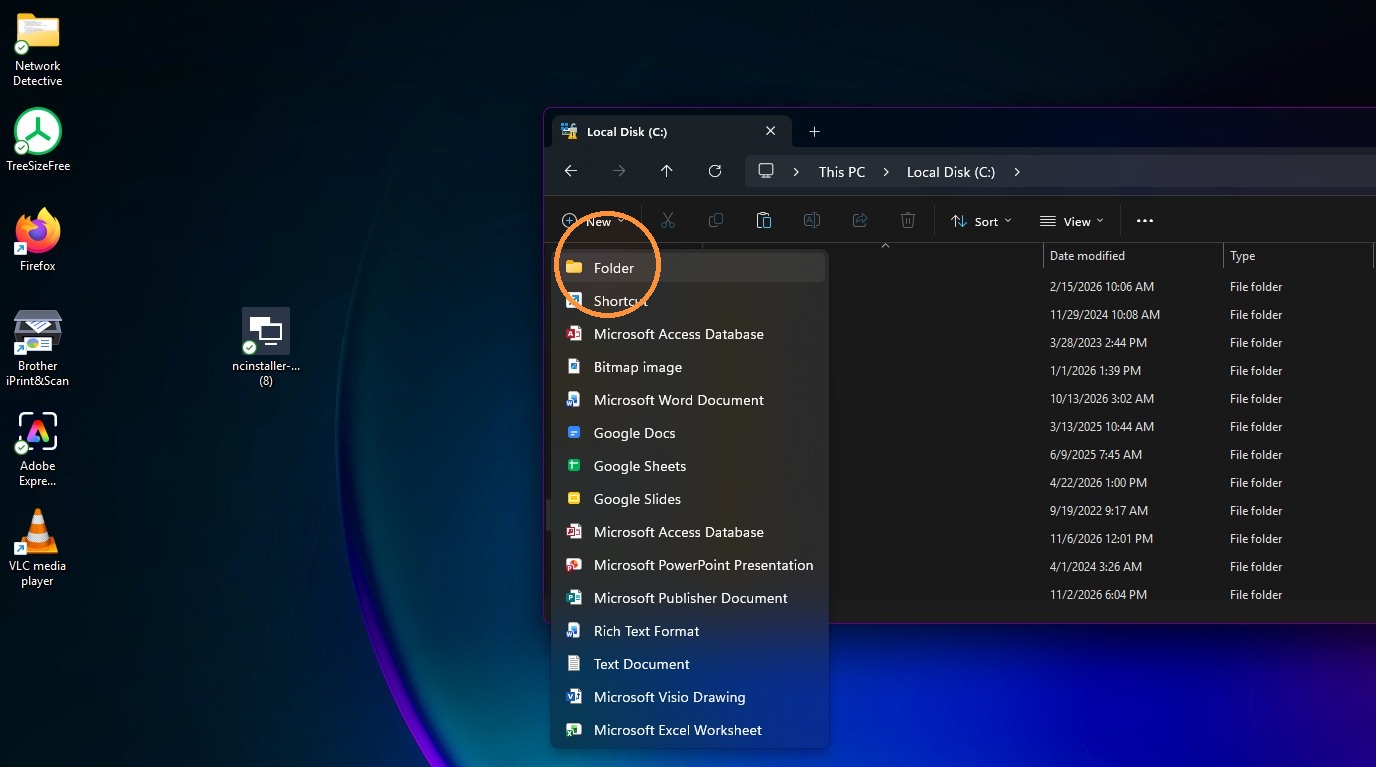
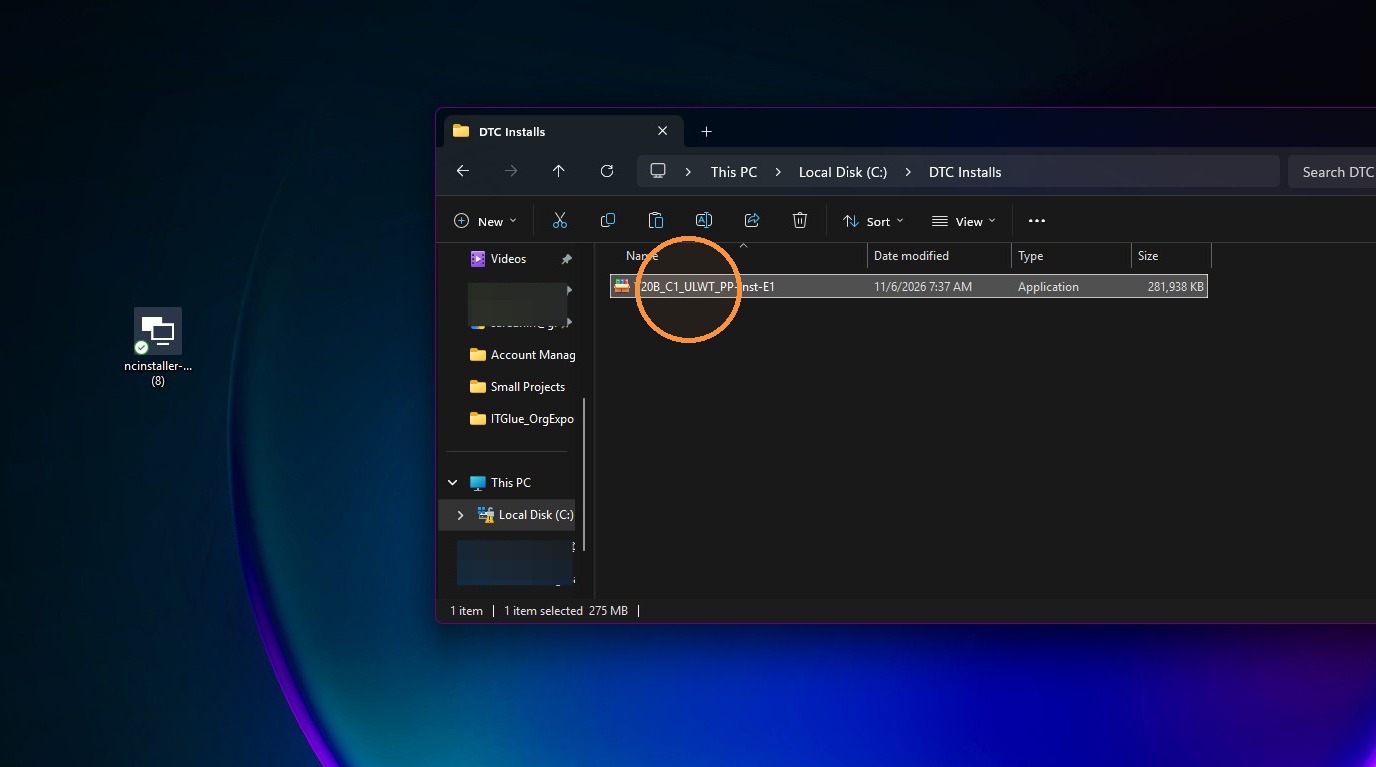
9. Rename the new folder and call it "Your Company Name Installs", example: "DTC Installs"
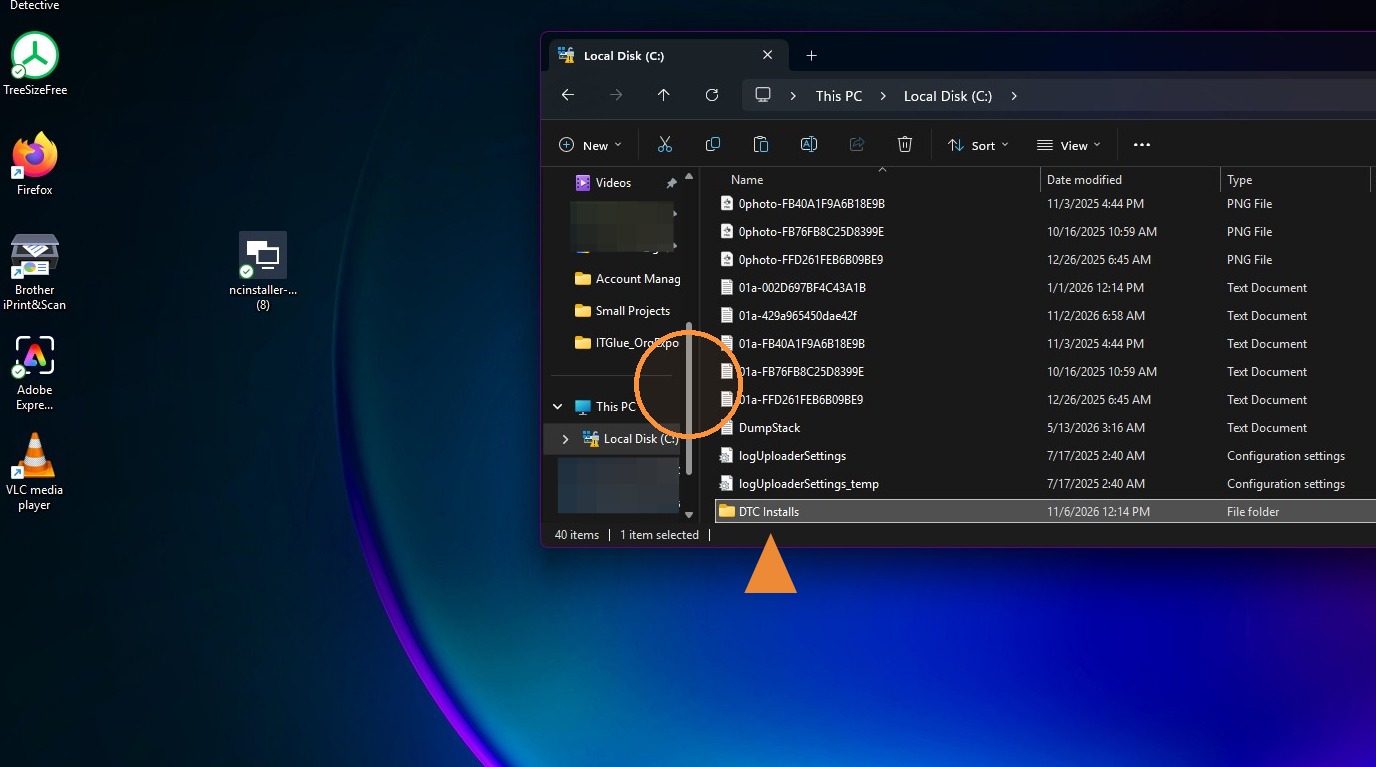
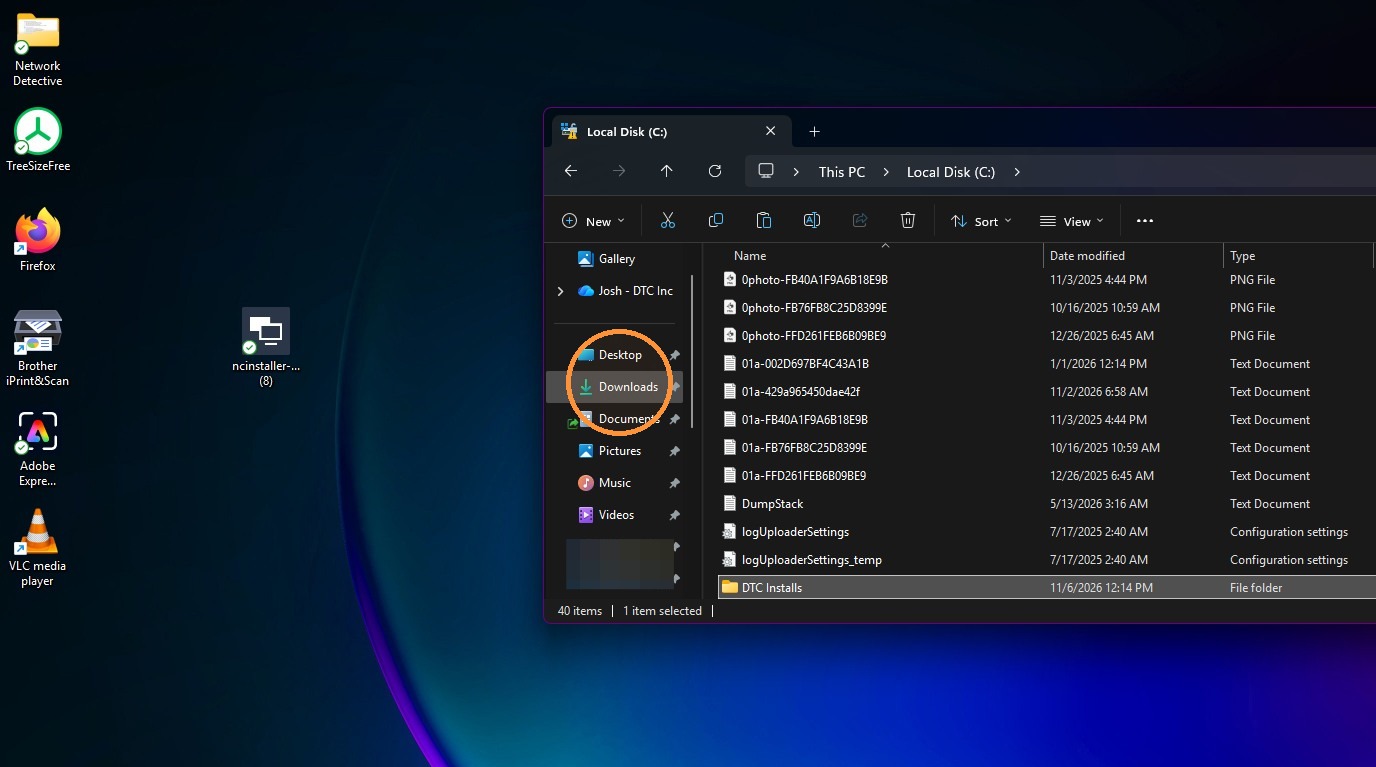
Return to Downloads
10. Go back to your Downloads folder and navigate to the executable file that was downloaded.
11. Right-click the installer in Downloads.
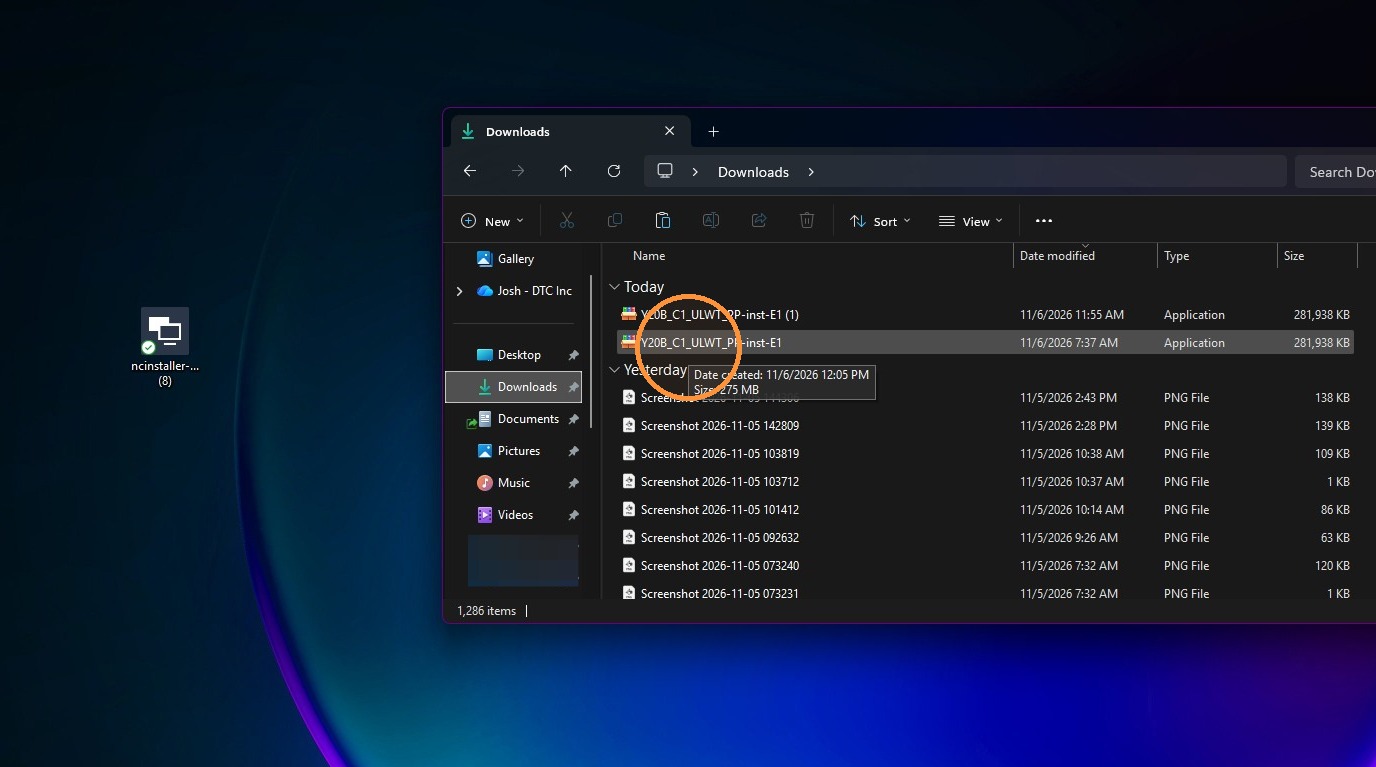
12. Select Copy
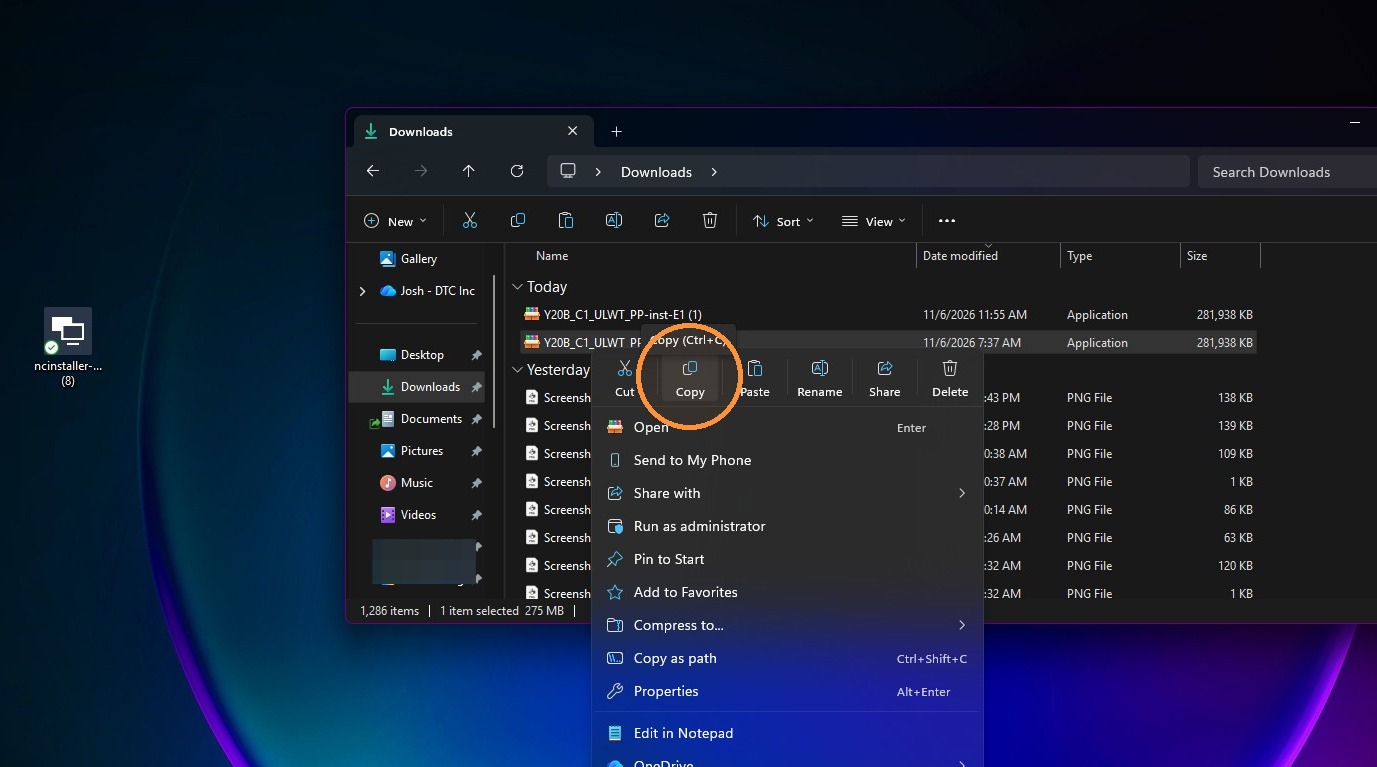
Locate the Installer
13. Scroll down in left side window, Select Local Disk (C:) in the navigation pane.
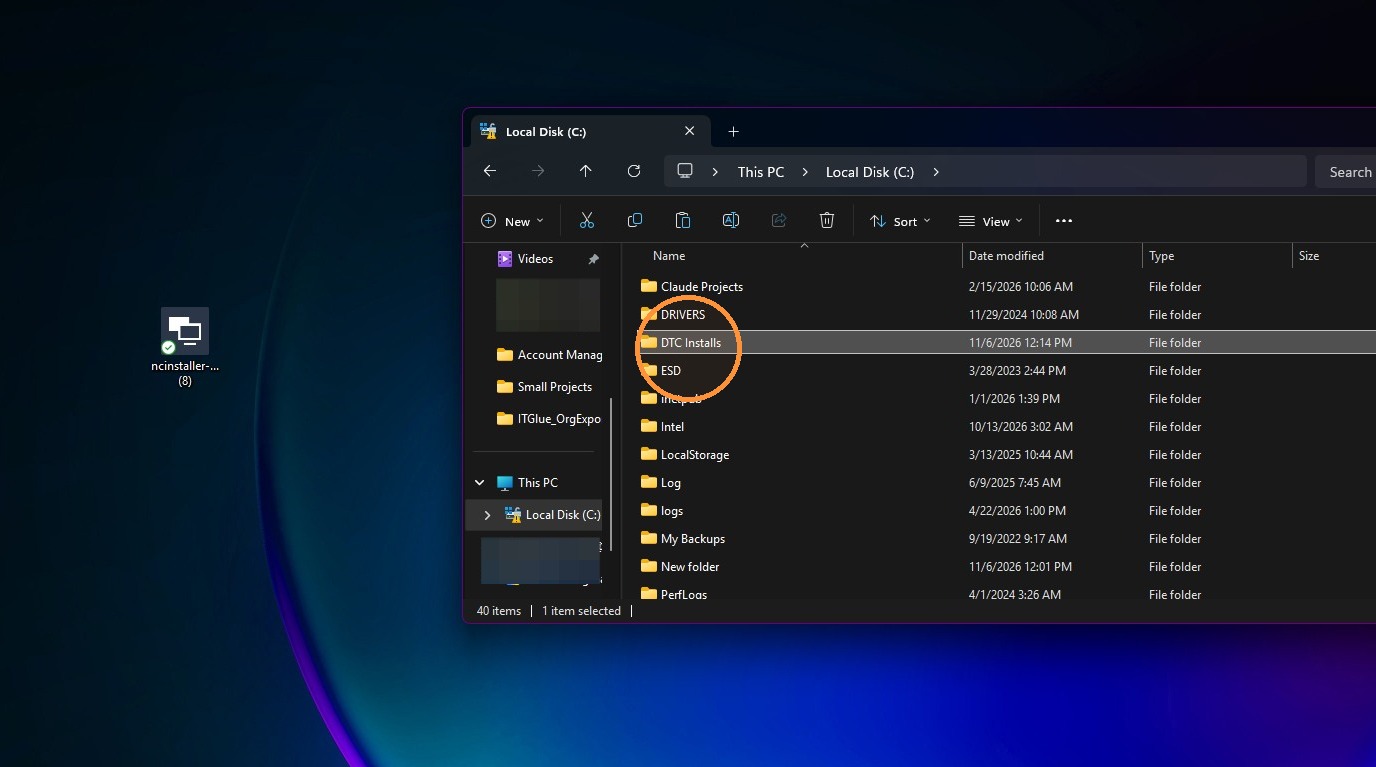
14. Open the DTC Installs folder.
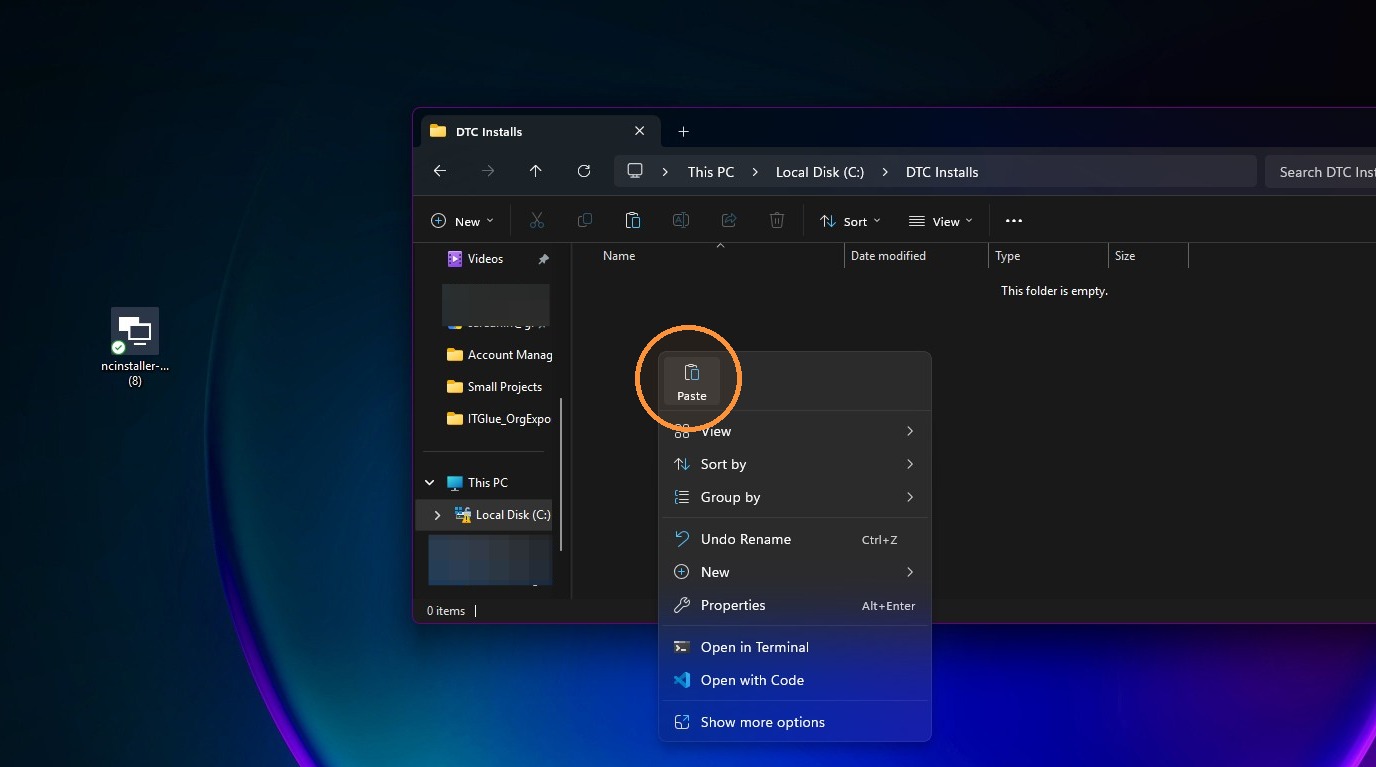
15. Right-click in the blank area, and select Paste.
16. Double-click the installer and executable file should run. Always verify the file first before running it. If ever in question, please reach out to DTC