How To Schedule A Field Install Visit
Learn the process for scheduling a field visit in the ticketing system. This guide walks you through selecting the correct workflow, setting date and time details, and assigning the task to the appropriate technician.
Workflow Configuration
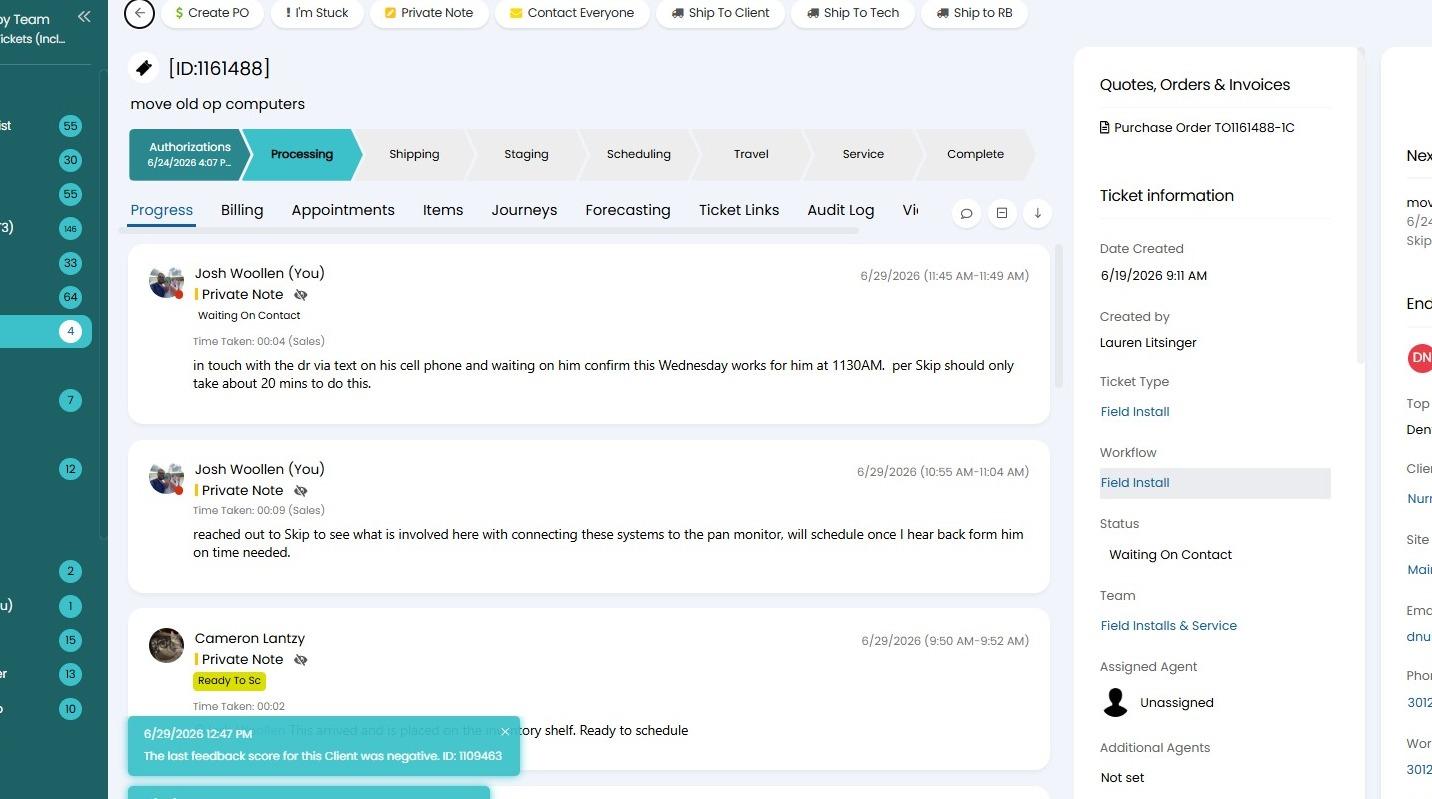
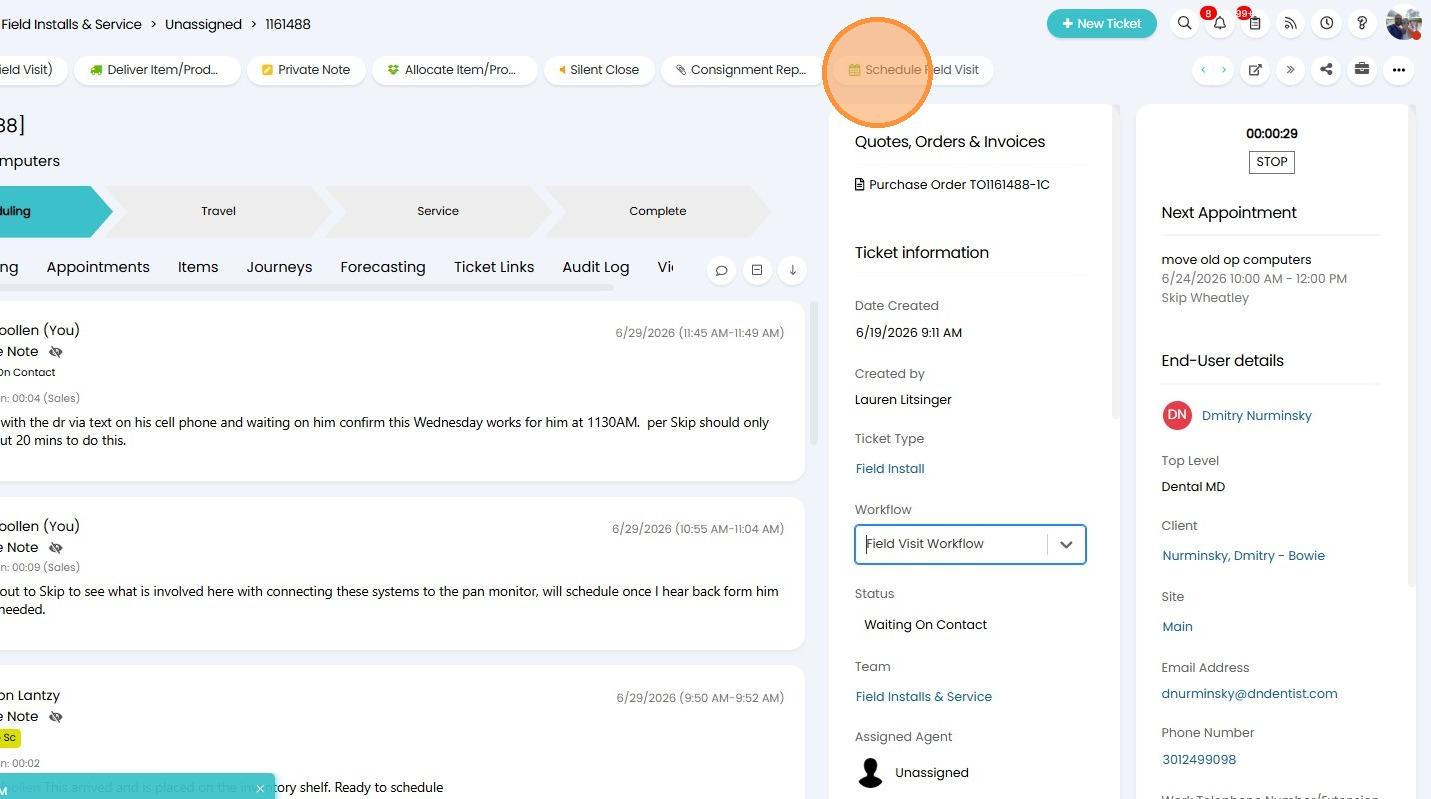
1. Navigate to the ticket page in the Service Desk Tab - Field Installs & Service section, click on Unassigned to see field visits needing scheduled.
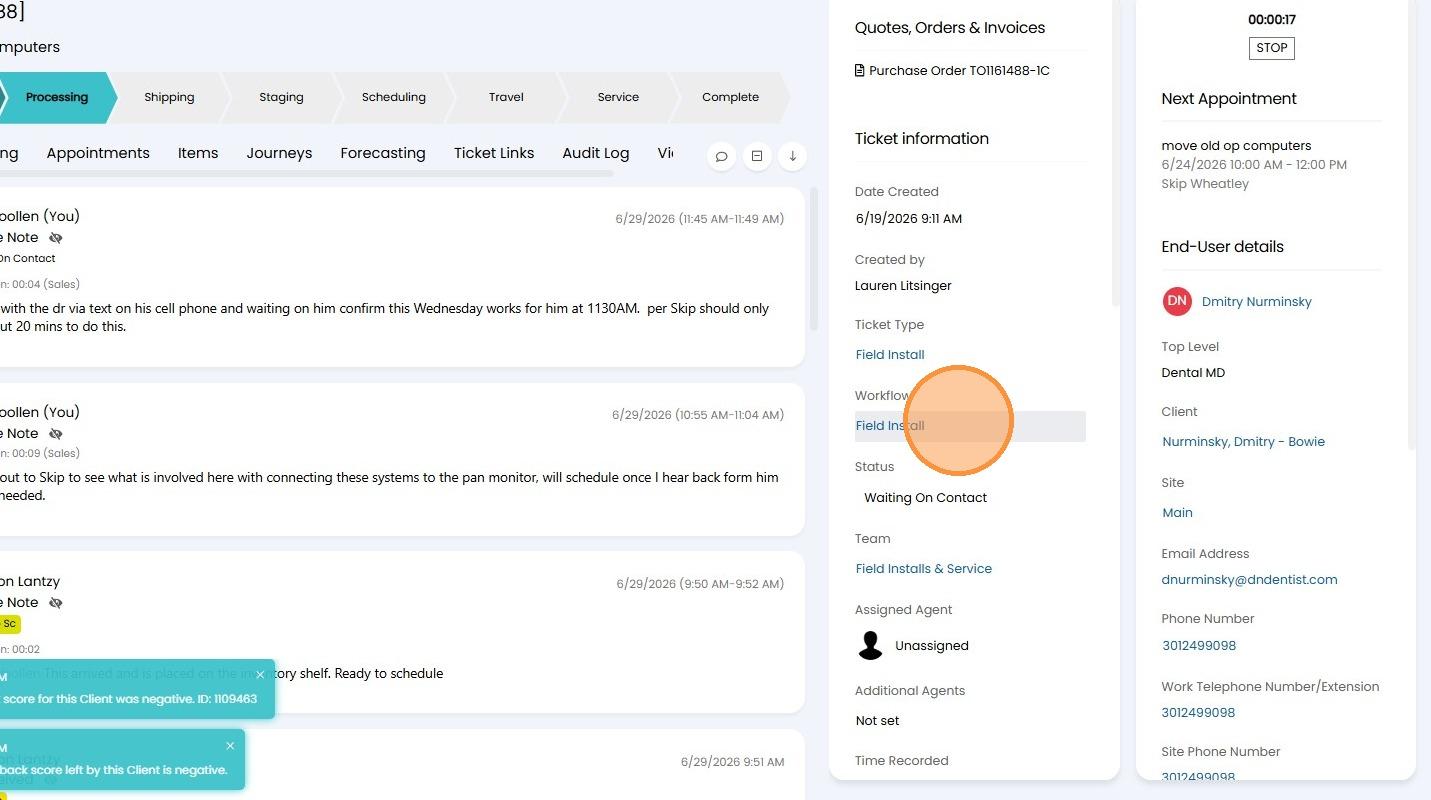
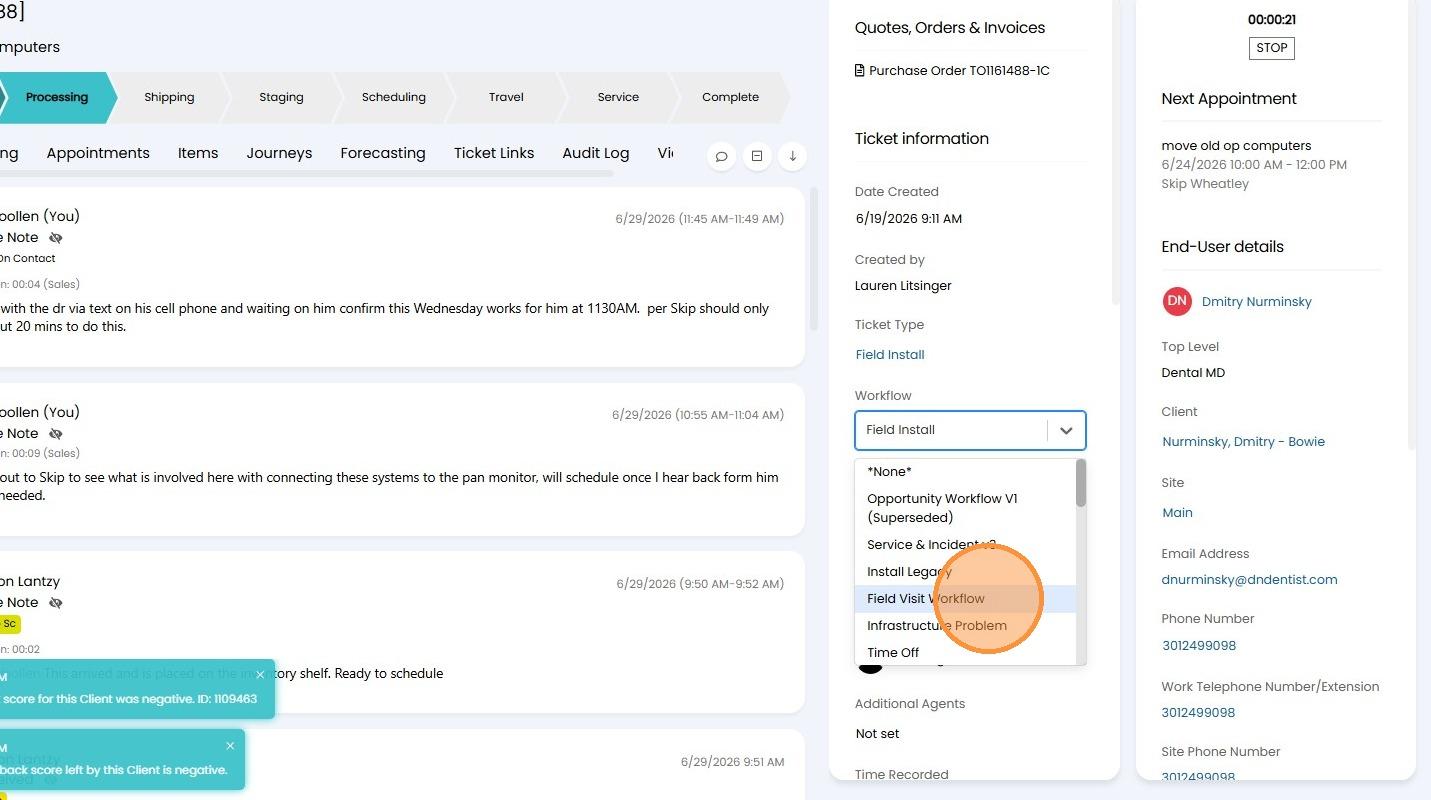
 2. Select "Field Visit Workflow" from the Workflow dropdown menu.
 3. Click "Schedule Field Visit".
Date and Time Selection
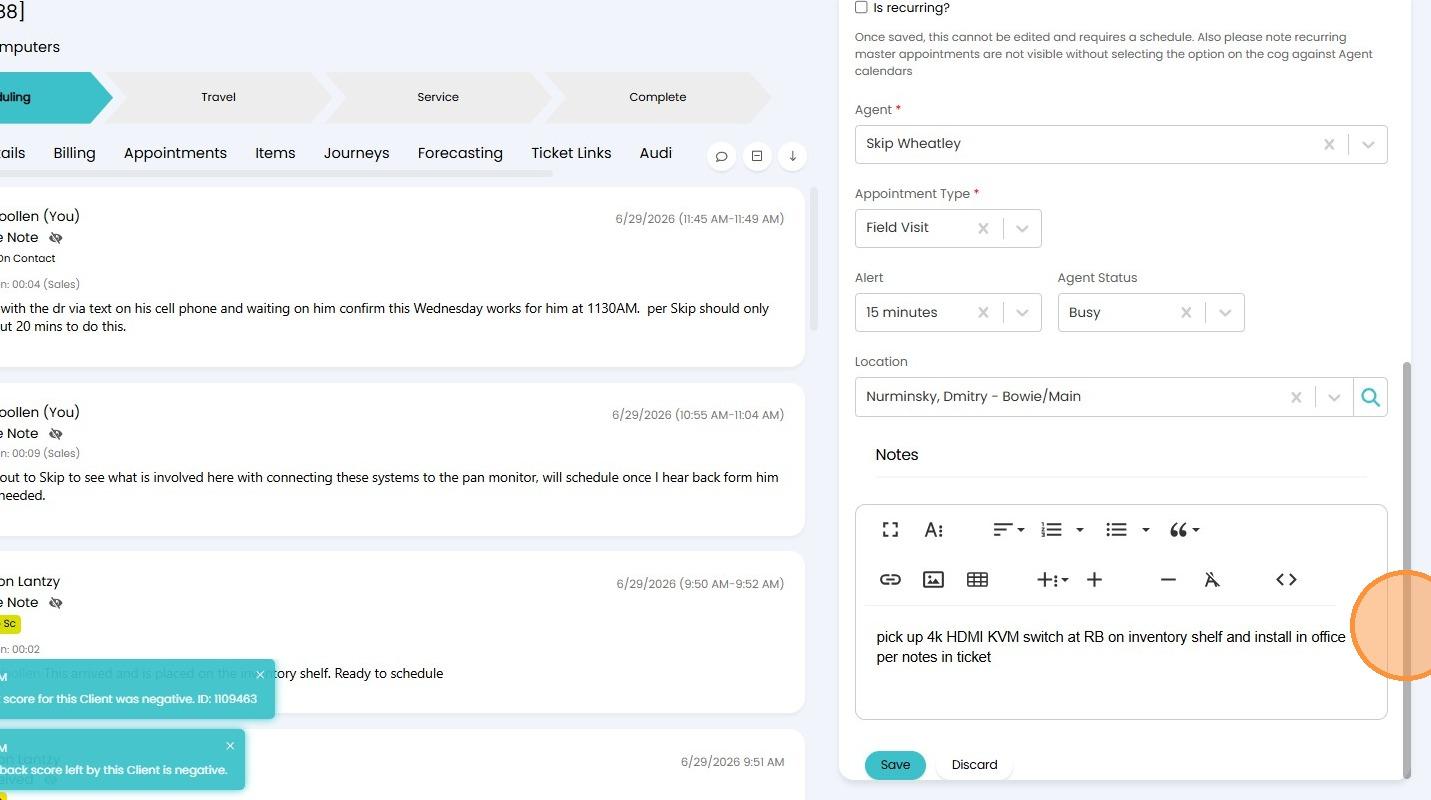
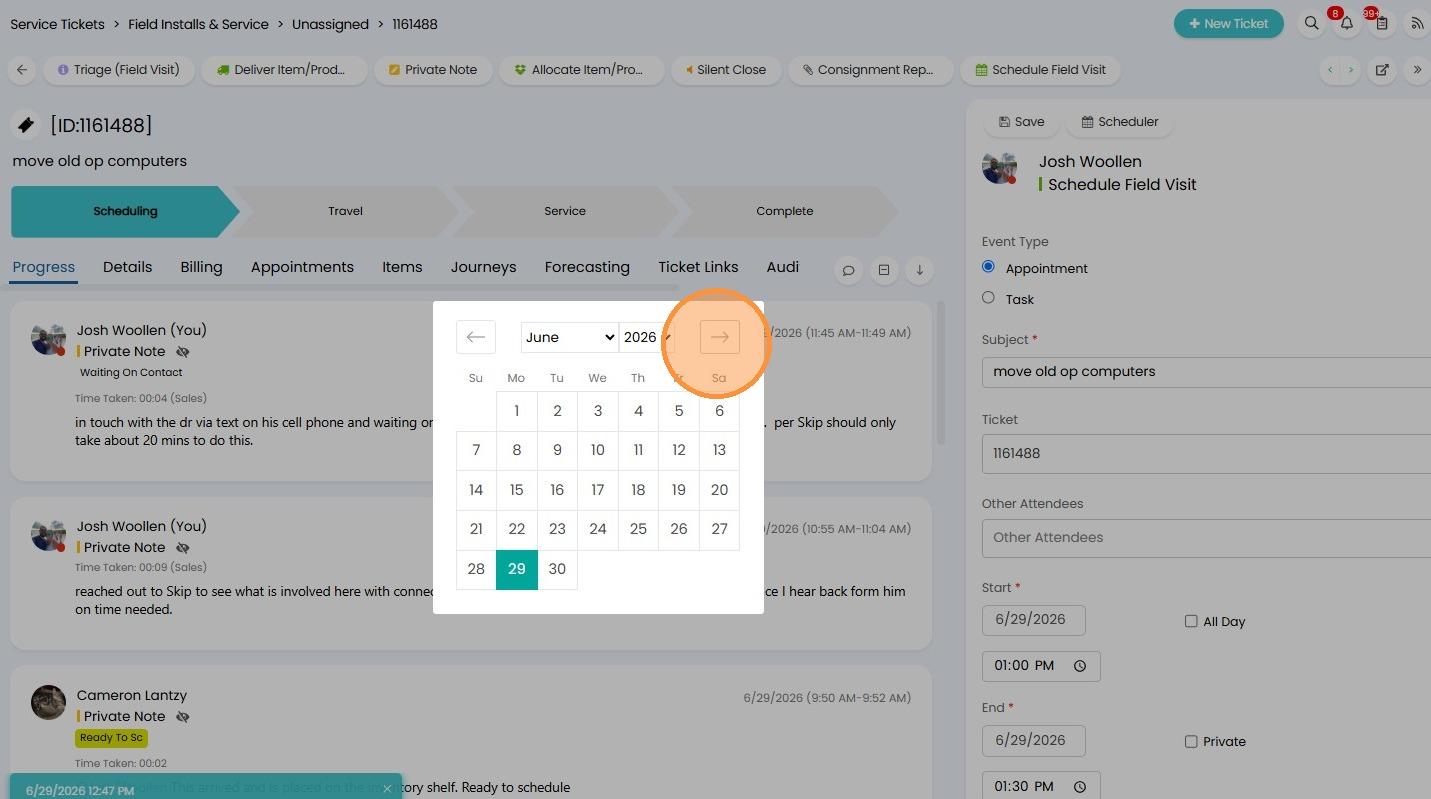
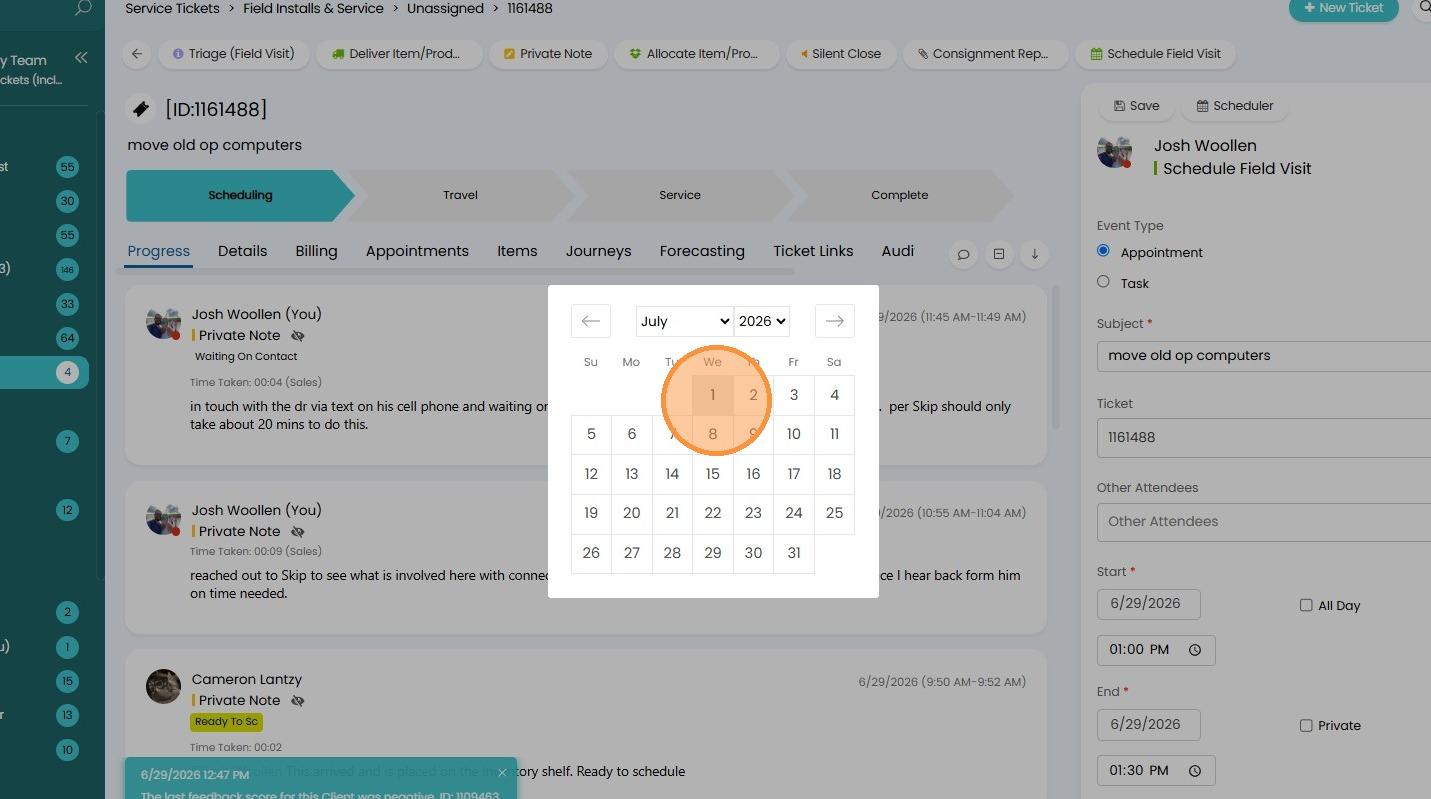
4. Open the calendar and select date of scheduled field visit as the start date.
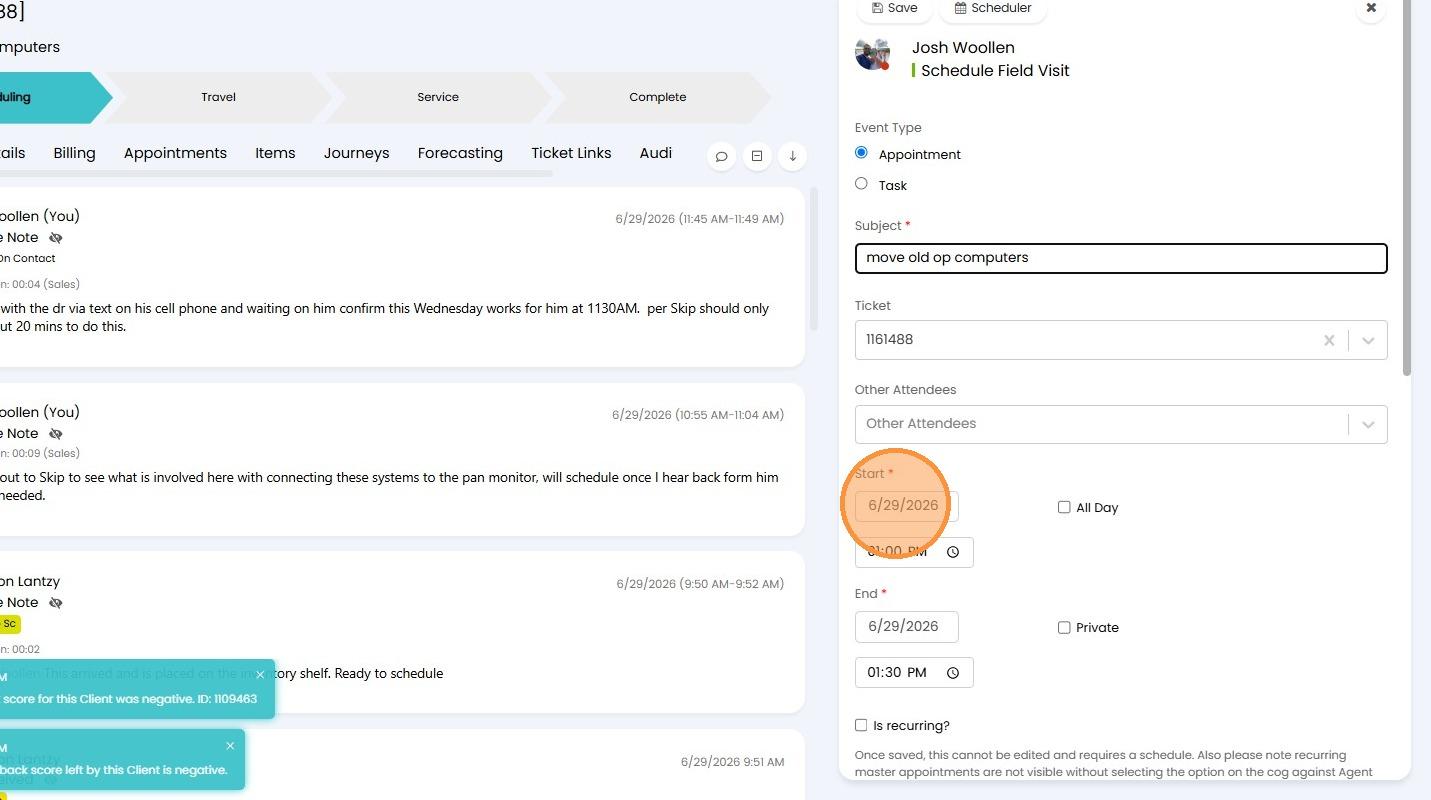
 5. Type in the Start time field.
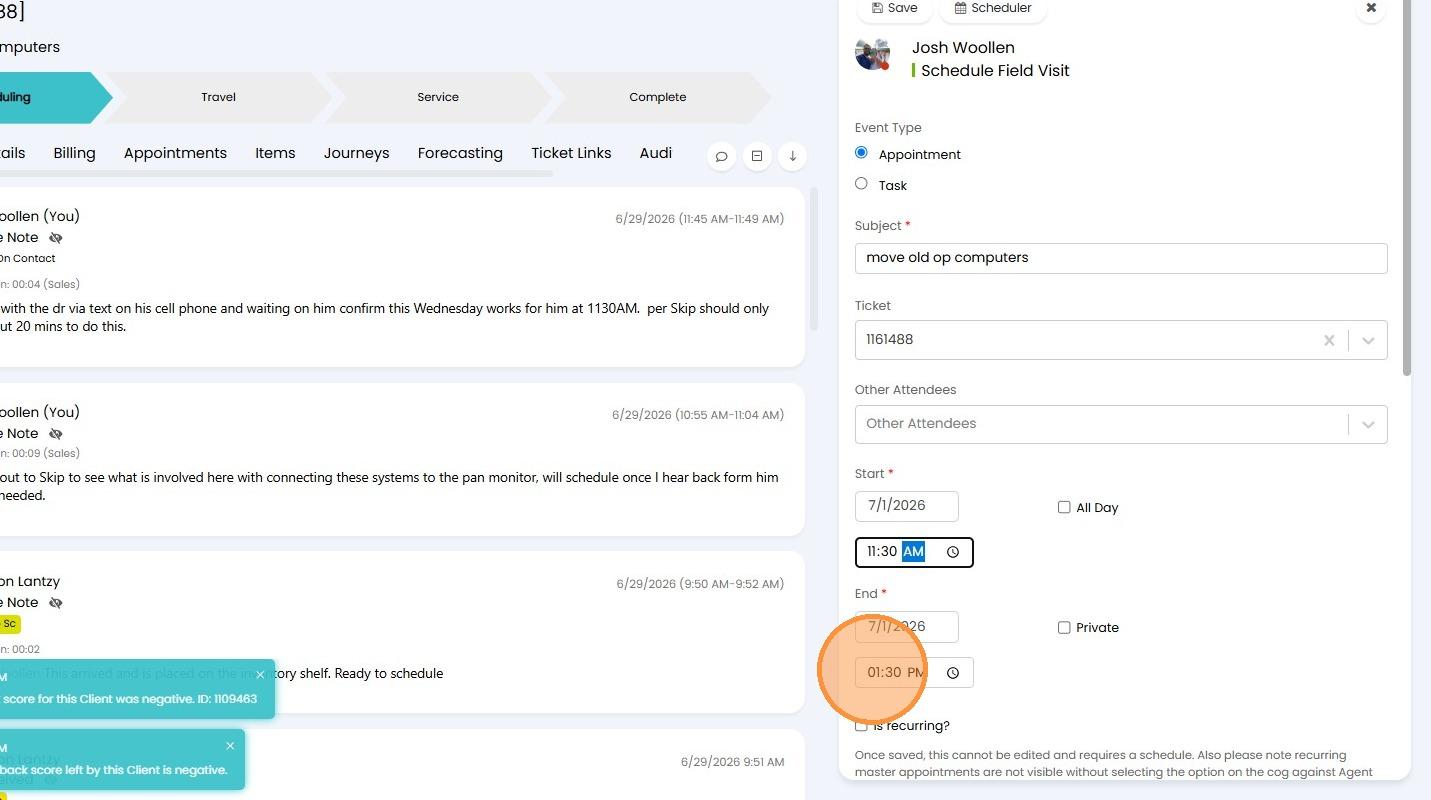
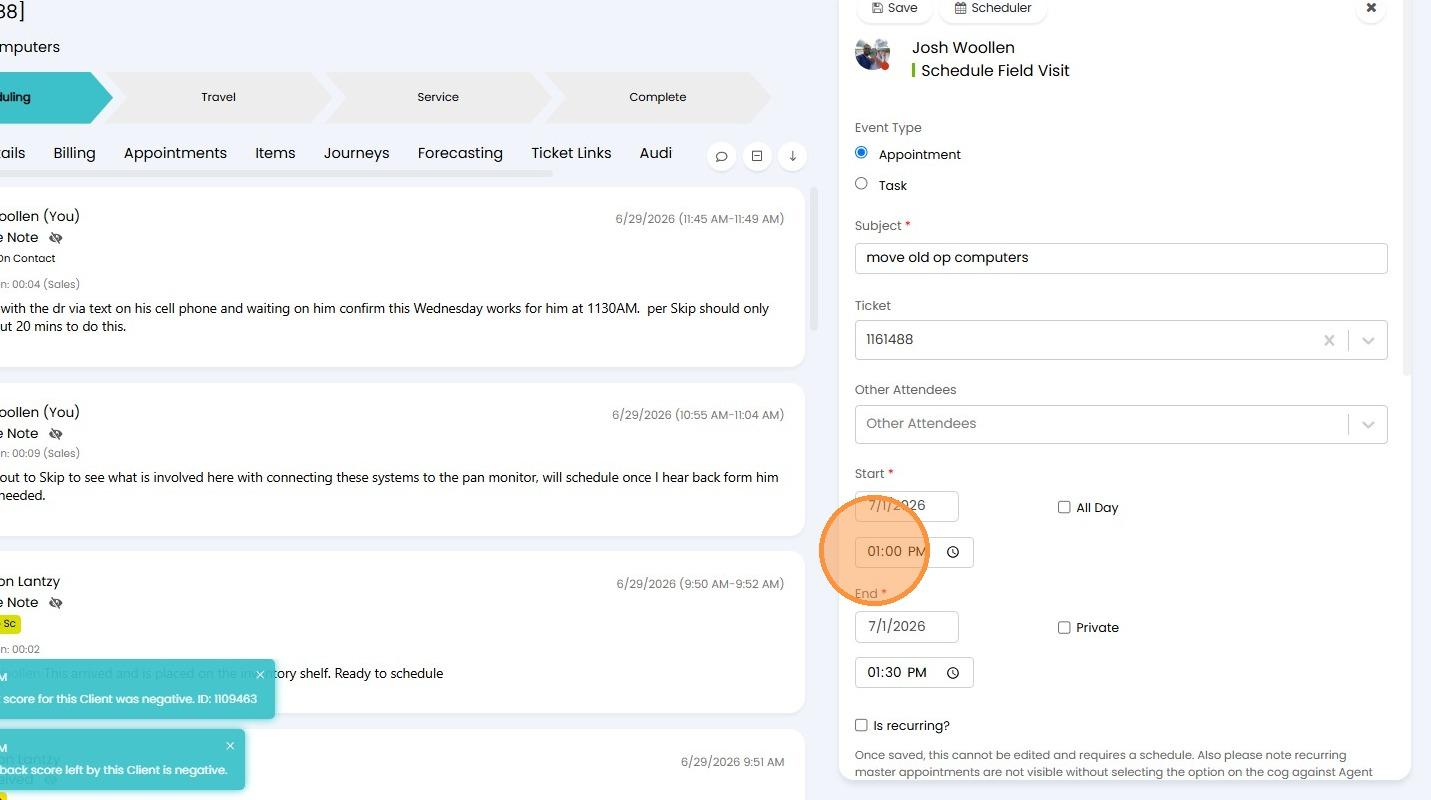 6. Type in the End time field and End date. Should be same date as start date.
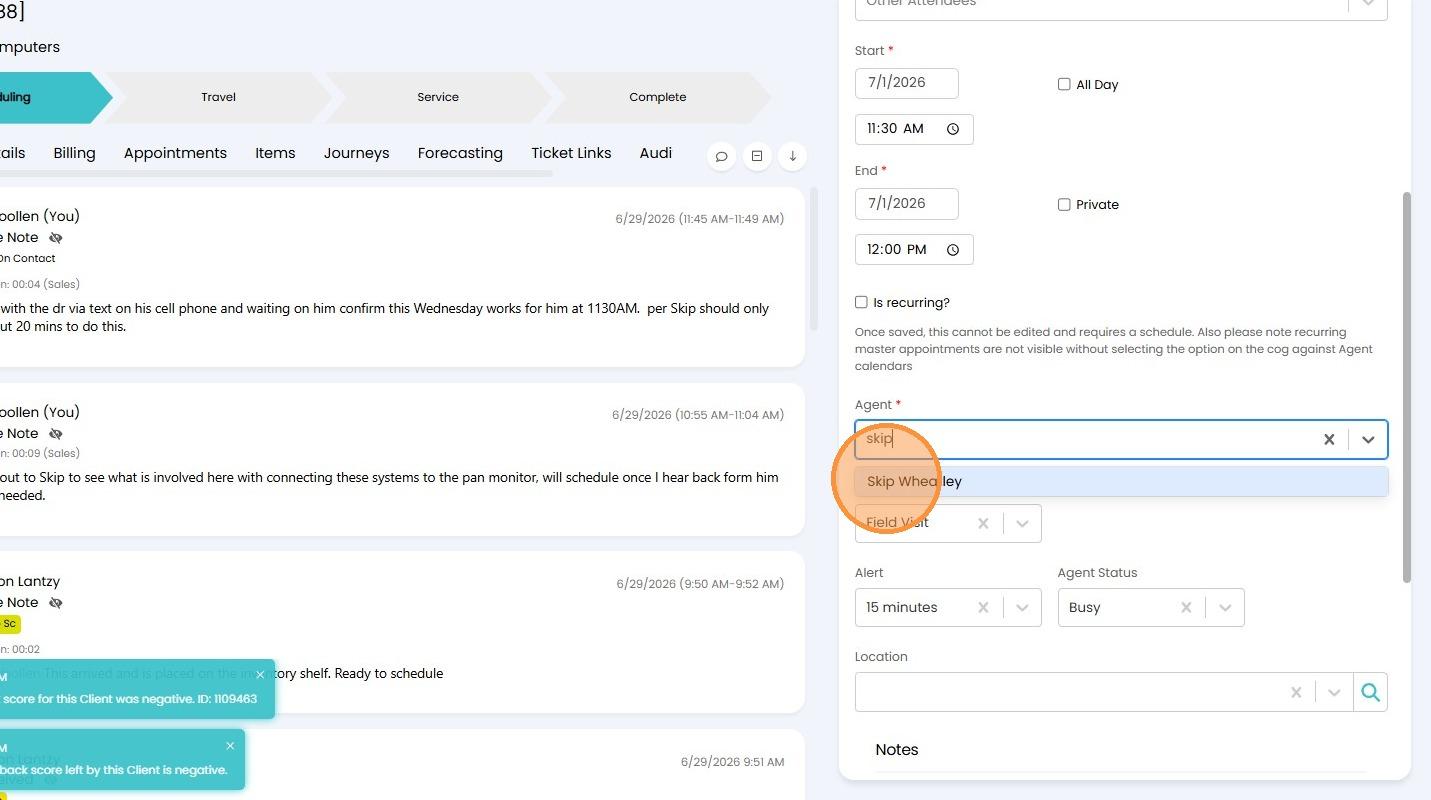
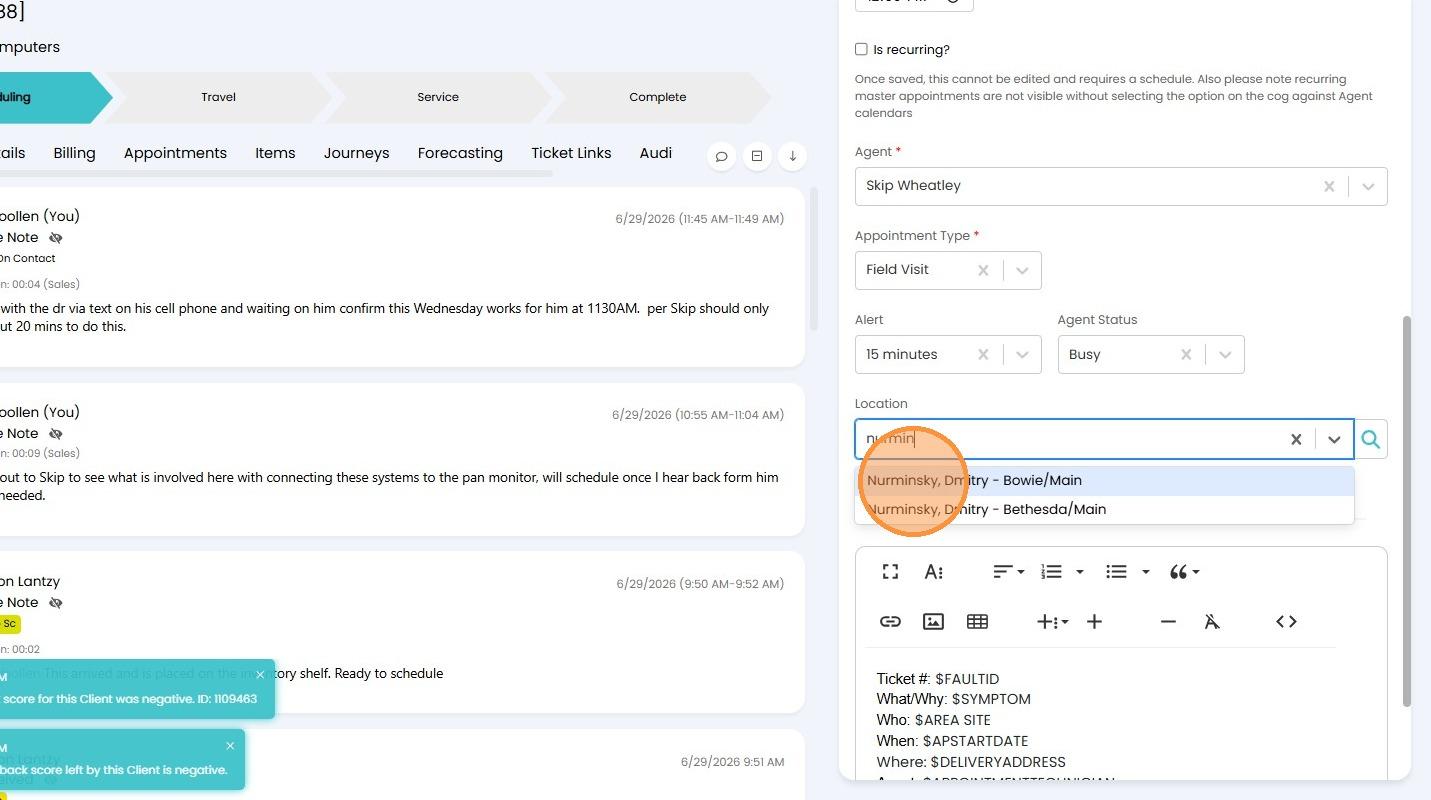
 7. Search for and select "field tech" in the Agent field. You can type field tech name here for faster search results.
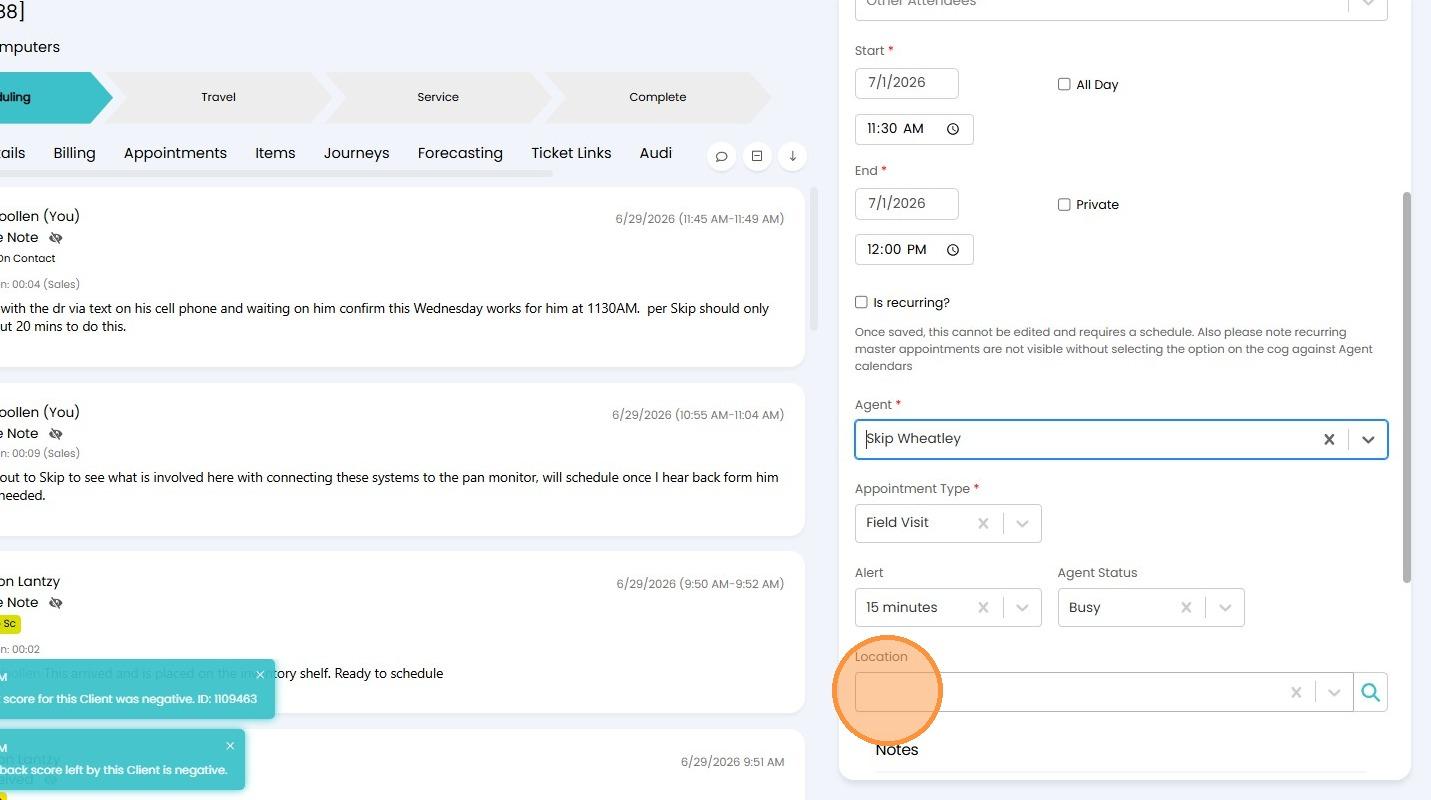
 8. Search for and select "client location" in the Location field. Type in client's name here for faster search results. Also confirm correct location is being selected here.
Notes and Submission
9. Enter the following appointment details into the Notes field: Ex.) location of inventory to be picked up that is at DTC for easy of tech to locate when picking up parts.
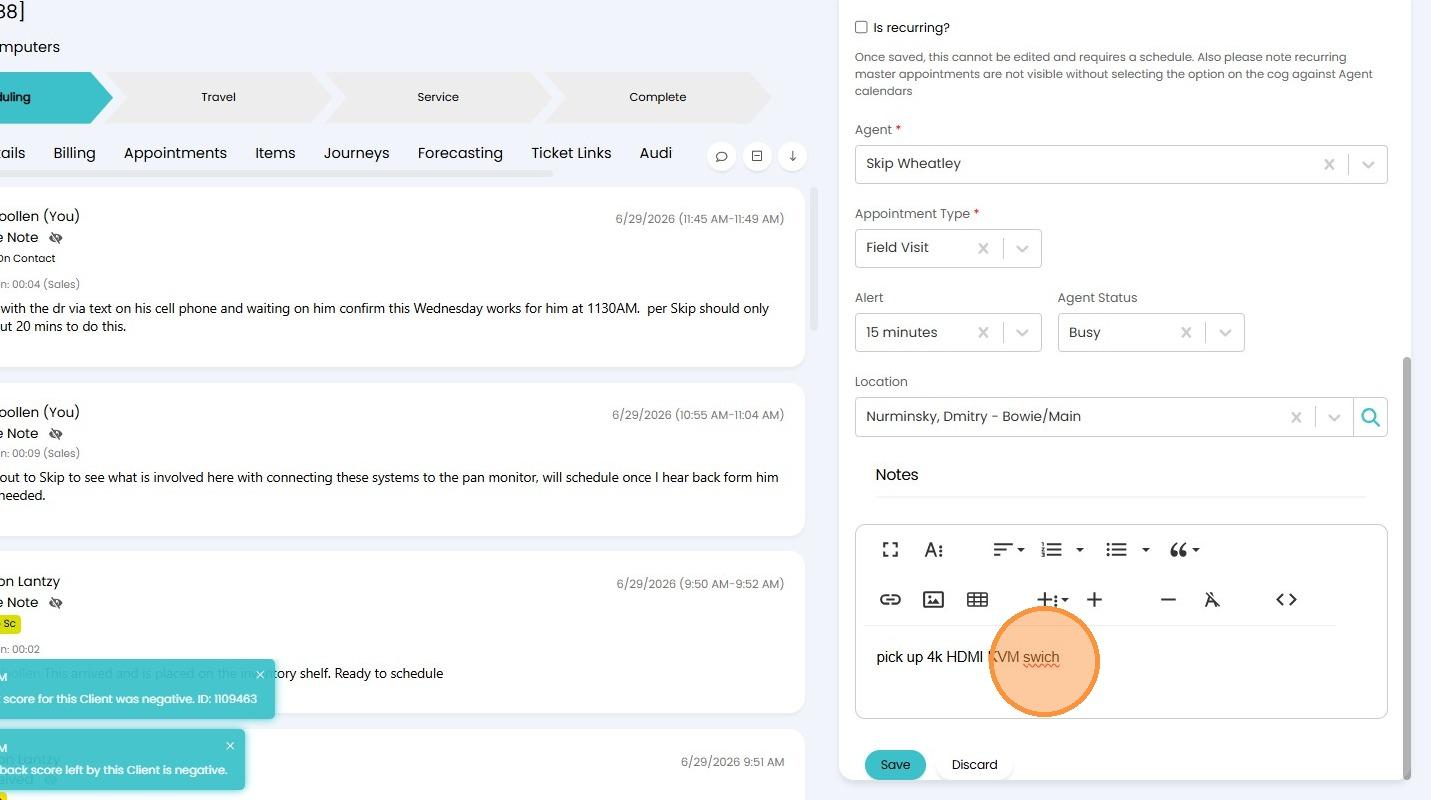 10. Click "Save" to finalize the appointment.